Advanced Usage
Integration with Jira
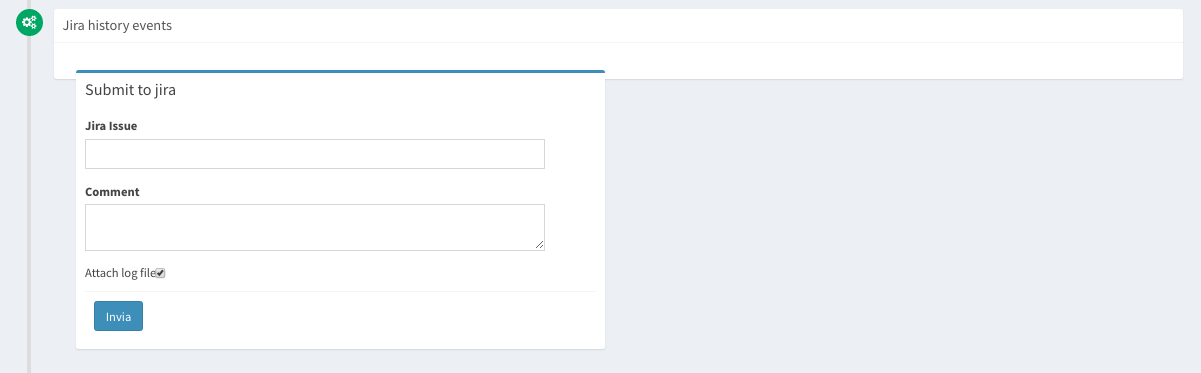
The aida suite integrates the ability to send the results of every single test finished to Jira, specifying the number of Issues to which you want to refer. To perform this operation it is sufficient to select the desired thread from the “History” mask, then every single execution (if the test has been performed repeatedly), if the Jira configuration has been set, it will be possible to connect the data between the two systems.
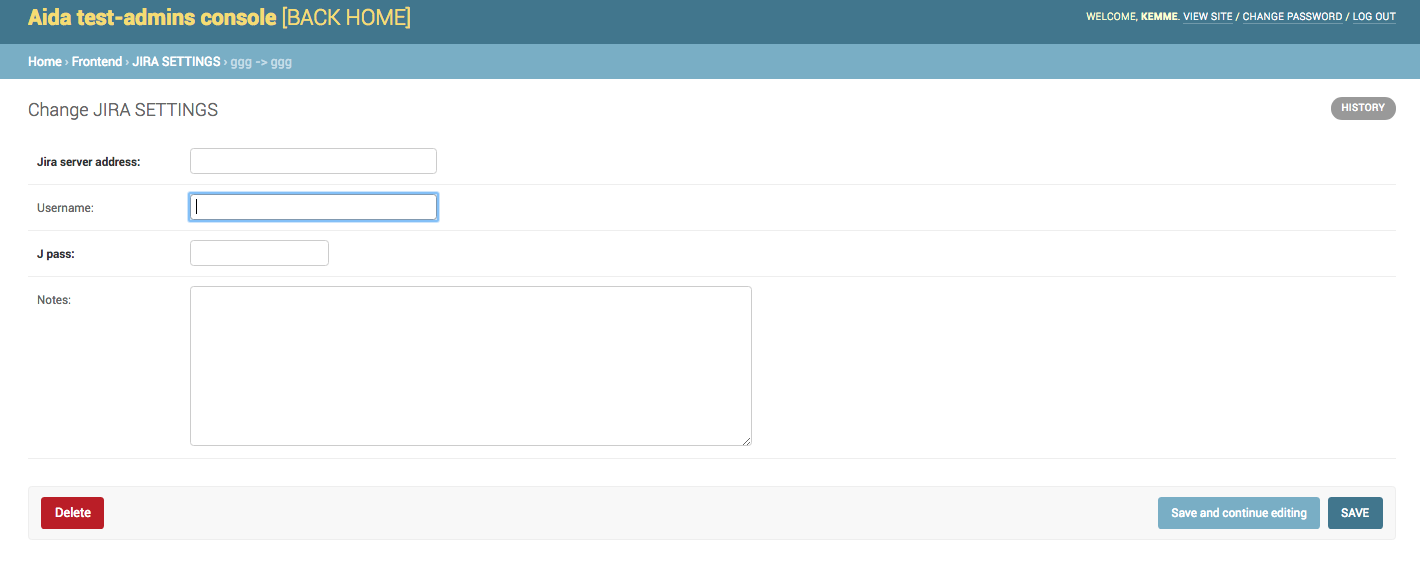
To ensure that the ability to send data to Jira is activated, it is necessary to specify the connection parameters to your Jira server from the “Template Manager” by selecting the “JIRA SETTINGS” option.
The Project Template link
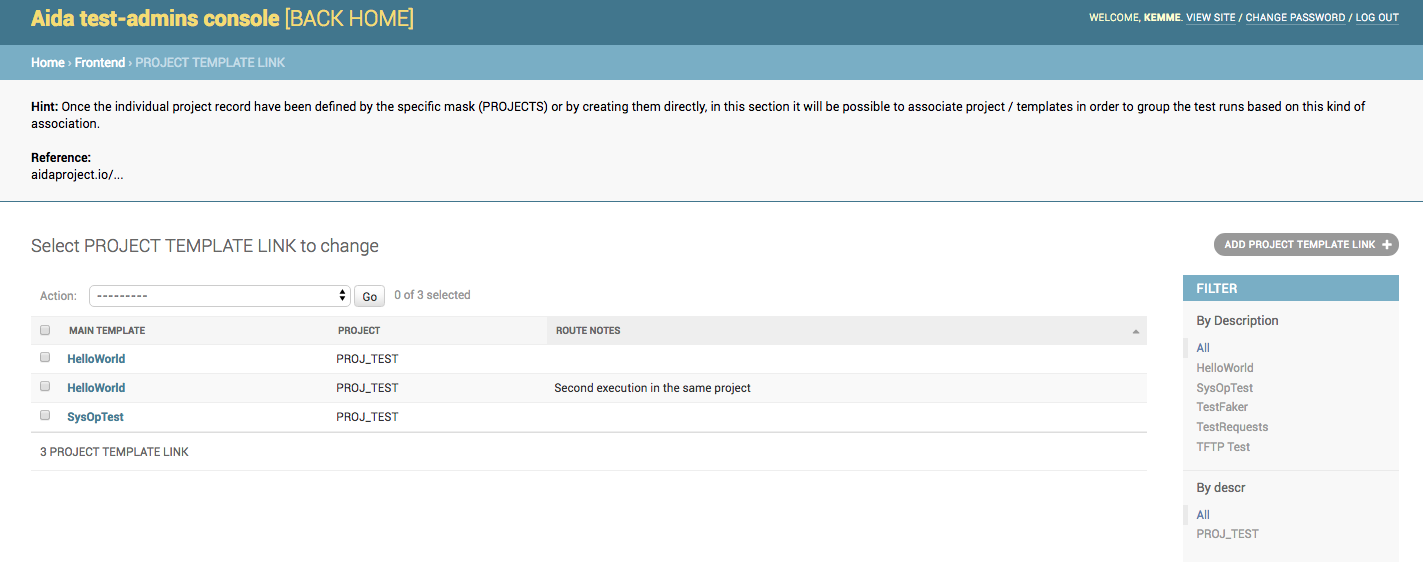
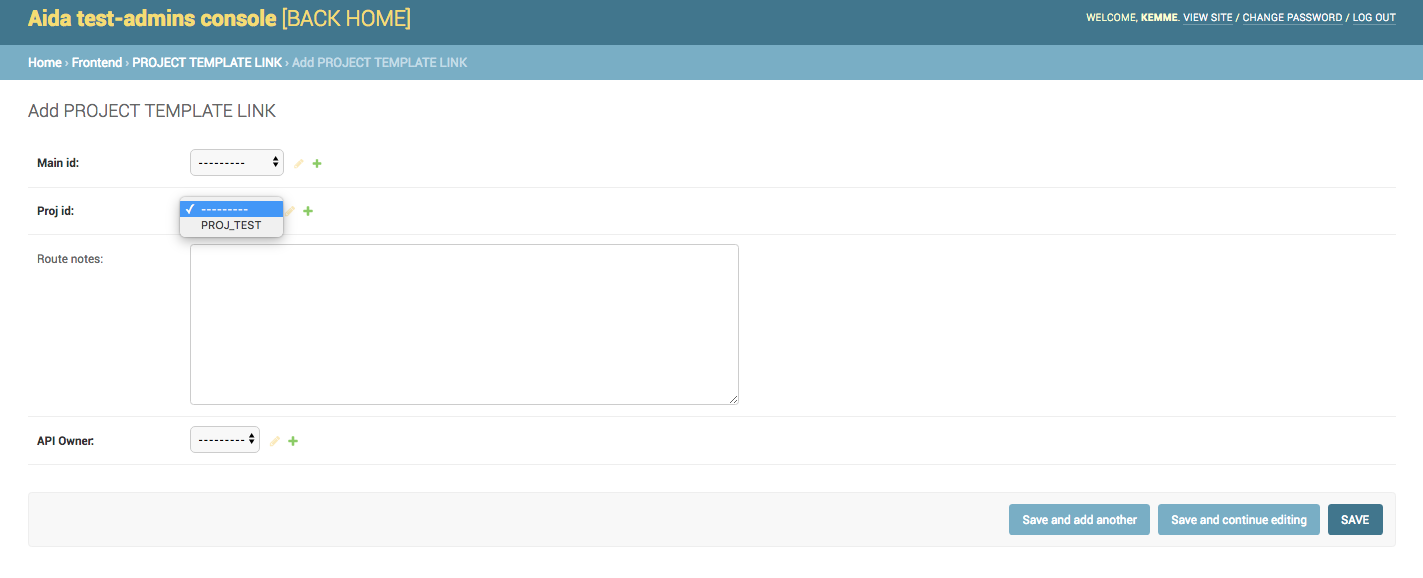
Through the use of the Project Template link it is possible to group templates in specific projects in order to be able to execute several templates simultaneously by selecting the relative project.
To manage the Templates / Projects association, select the “PROJECT TEMPLATE LINK” link in the Template Manager
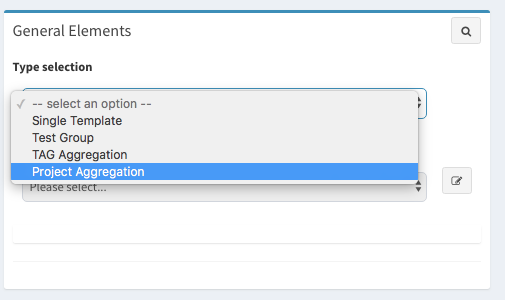
To associate an existing Template with a project it is necessary to use the selection areas from the add / modify mask. If no project is present or if it is necessary to create a new one, it is sufficient to use the “+” button next to the “Proj ID” area
Project Manager
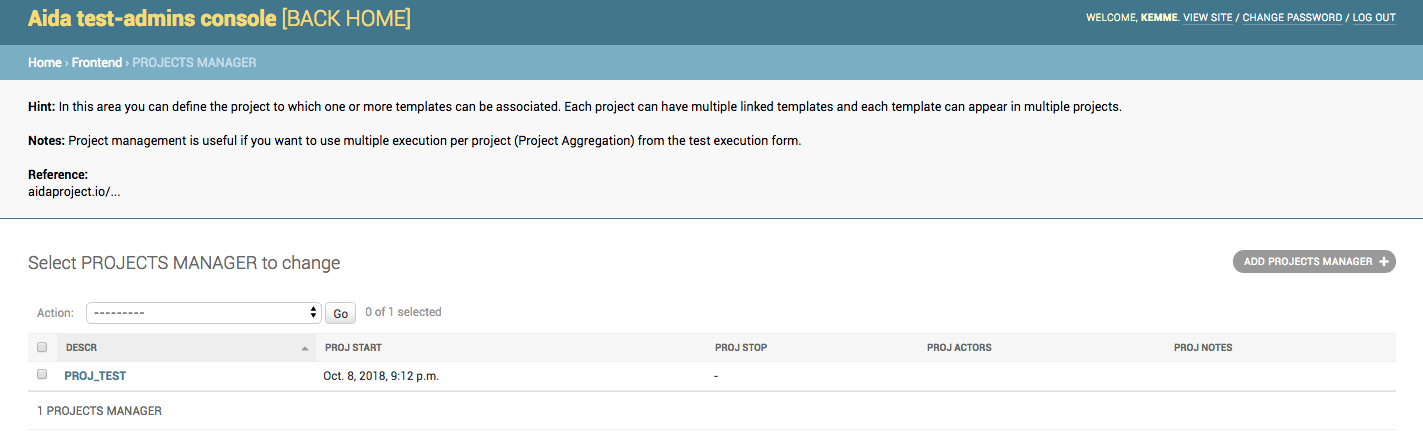
Through the use of the “Projrct Manager” function it is possible to create projects containers, associating management parameters with them. To create a new project, select the “PROJECTS MANAGER” menu from the Template Manager.
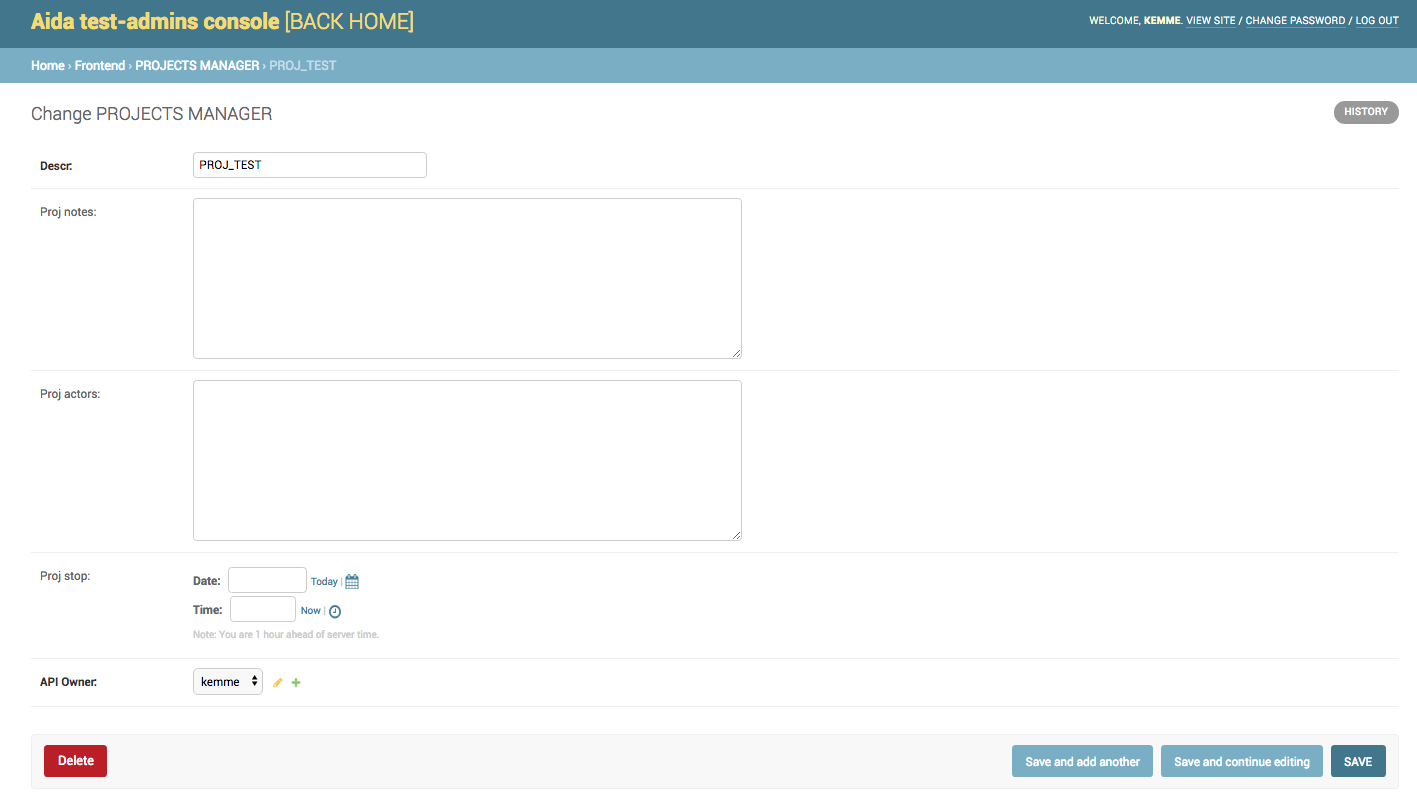
Using the function of adding or modifying a project, the fields of the mask will be displayed. Through this page it will be possible, besides giving the project name, to add any notes, add actors to the project and define a date and a closing time of the project itself.
Note
The project will be visible and usable to perform the tests contained until the stop date. Once finished, it will no longer be possible to select this project to run the tests contained in it.
The TAGS Templates Link
Aida allows the use of TAGs to identify, grouping and execute bunch of different templates at the same time.

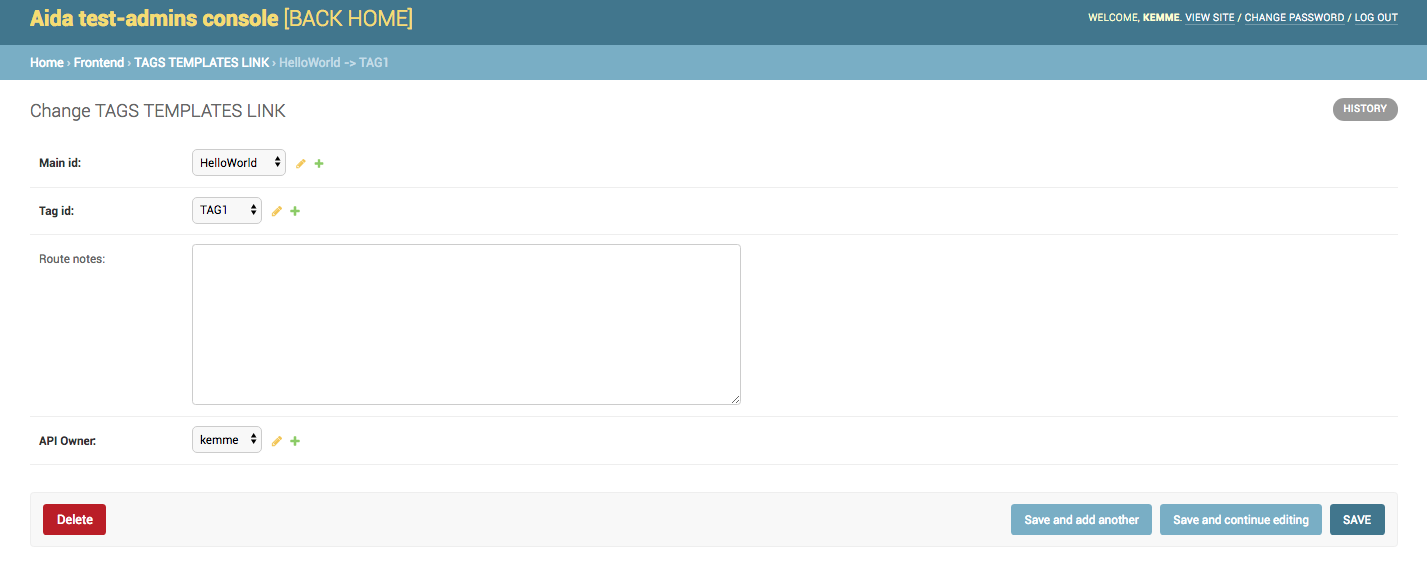
To create the TAG / Templates association, open the “TAGS TEMPLATES LINK” link from the template manager
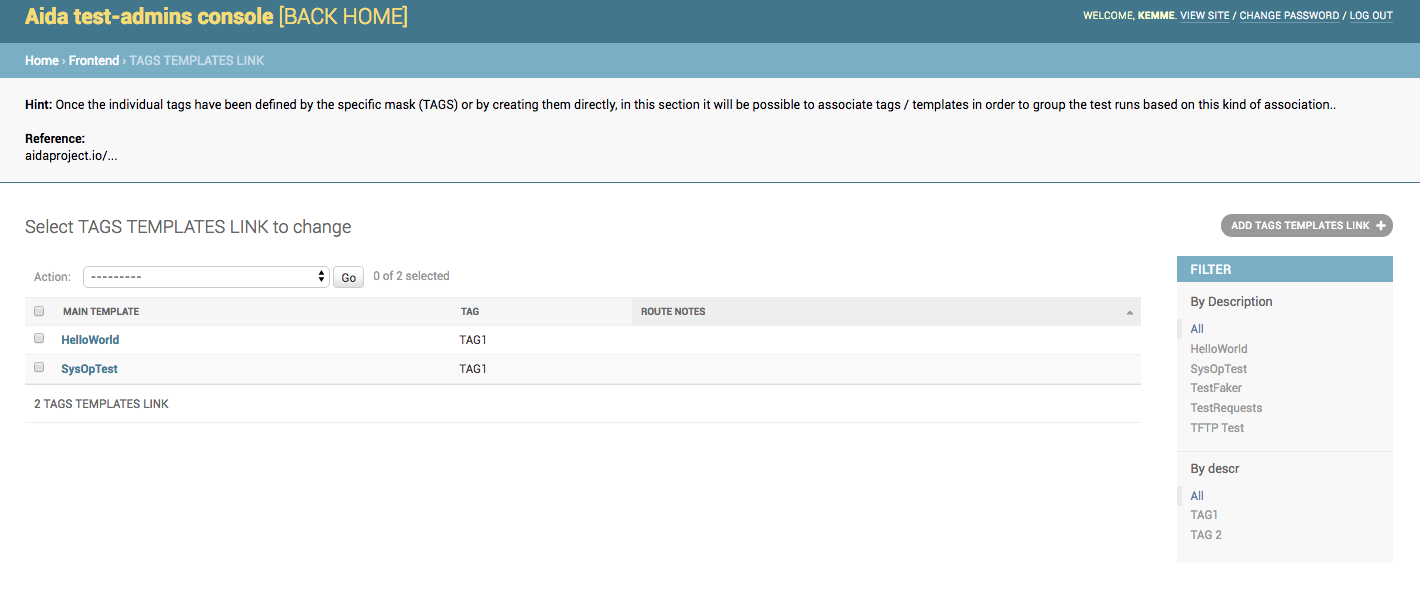
In the edit / insert management mask it is possible to associate a template with a specific TAG, to do this select the Template in the Main Id field and the tag in Tag Id option.
Note
The main difference between the project / template association and the TAG / template association lies in the fact that the former refers to a project with its own life cycle while the latter is a bookmark of one or more groups of templates.
Test Group Manager
A more complex way of managing the test groups is that linked to the function called “TEST GROUP MANAGER”, accessible through the Template Manager mask
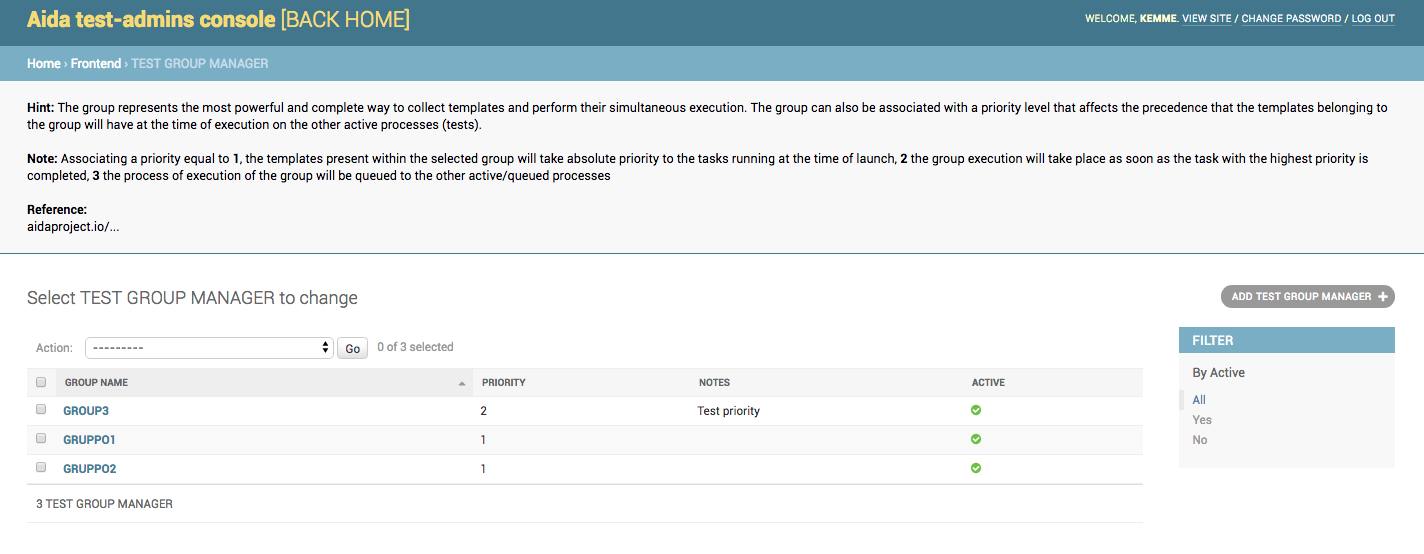
Through the use of the group creation / modification mask it is possible to associate a priority to it so that, in the case of launches of several concurrent groupings, those with lower priority obtain the precedence of execution on the others at the resource allocation level of the test engine.
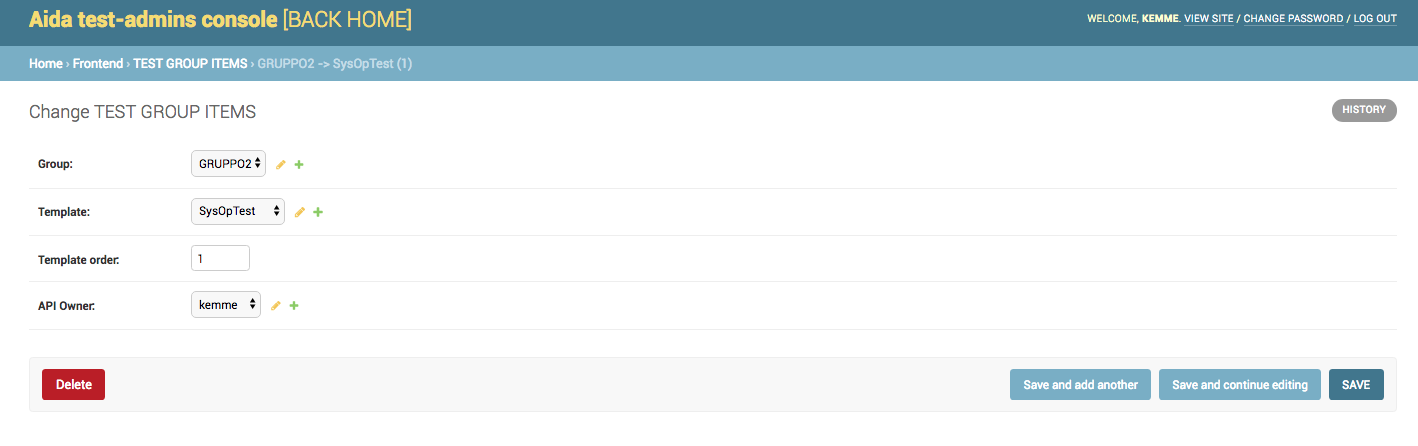
Test Group Item
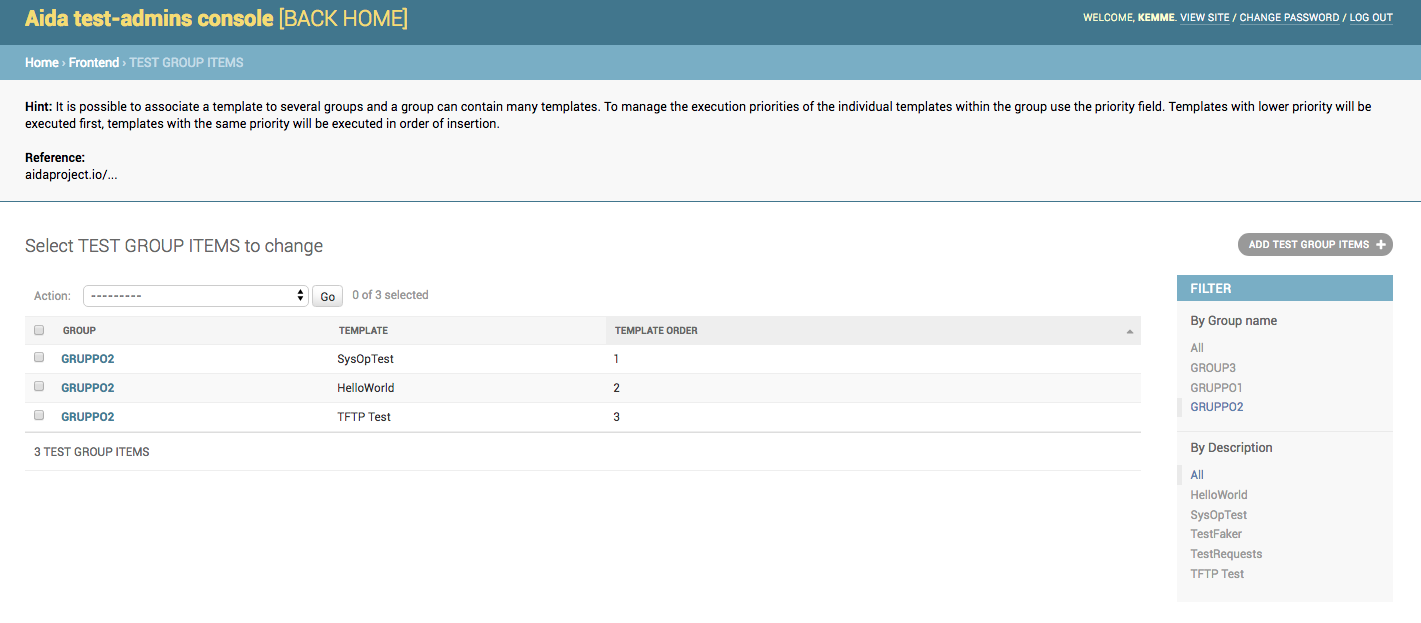
After creating the group, it is necessary to associate the templates that you want to run together
Note
When you insert a template within a group it is possible to define the order of execution of each one of it. Templates with lower priority will be executed first, in order of priority. In case of equal priority level the templates will be executed in order of insertion.
